> ## Documentation Index
> Fetch the complete documentation index at: https://docs.runloop.ai/llms.txt
> Use this file to discover all available pages before exploring further.
# Debugging Agents with rl-cli
> Securely connect to a remote Runloop Devbox using SSH for debugging
## Overview
When working with AI-generated code, you may need to debug the state of the project after the AI has run various commands. SSH allows you to connect your computer directly to a Devbox, enabling you to debug, run remote commands, and view or modify the remote filesystem.
Runloop uses a transparent proxy to facilitate routing for all SSH access. Your SSH connection is end-to-end encrypted using standard SSH public key cryptography. The Runloop API provides a mechanism for retrieving SSH keys using a Runloop API key.
## Setup
We recommend using the Runloop CLI (`rli`) to interact with Devboxes. Install it via npm:
```bash theme={null}
npm install -g @runloop/rl-cli
```
For full CLI documentation including interactive mode and all available commands, see the [Runloop CLI documentation](/docs/tools/cli).
## Create and SSH into a Devbox
 ```bash theme={null}
export RUNLOOP_API_KEY="ak_"
```
```bash theme={null}
rli devbox create
```
You'll receive the devbox ID:
```
dbx_2xMEVq0JpPtxUxZikhOLm
```
For full JSON output, use:
```bash theme={null}
rli devbox create --output json
```
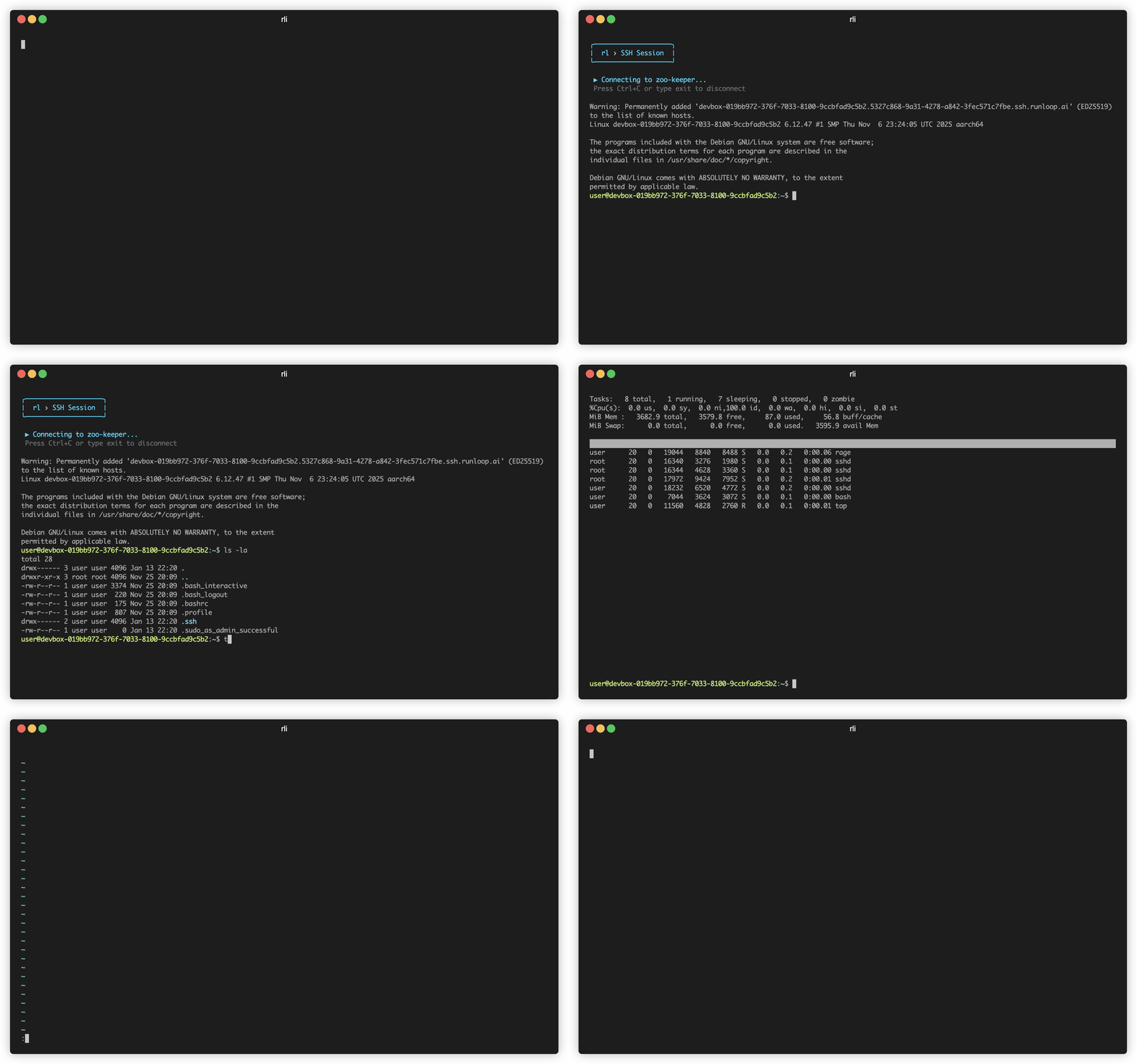
SSH into a running Devbox using the returned ID:
```bash theme={null}
rli devbox ssh dbx_2xMEVq0JpPtxUxZikhOLm
```
The CLI will wait for the devbox to be ready and then connect you to a shell:
```
user@devbox-019138a2-7e80-7233-8100-1add224f41ee-zst79:~$
```
Type `exit` to leave the SSH session.
When you're done, shut down the Devbox:
```bash theme={null}
rli devbox shutdown dbx_2xMEVq0JpPtxUxZikhOLm
```
## Finding Devboxes with Interactive Search
The Runloop CLI includes an interactive mode that makes it easy to search and filter through your devboxes:
```bash theme={null}
export RUNLOOP_API_KEY="ak_"
```
```bash theme={null}
rli devbox create
```
You'll receive the devbox ID:
```
dbx_2xMEVq0JpPtxUxZikhOLm
```
For full JSON output, use:
```bash theme={null}
rli devbox create --output json
```
SSH into a running Devbox using the returned ID:
```bash theme={null}
rli devbox ssh dbx_2xMEVq0JpPtxUxZikhOLm
```
The CLI will wait for the devbox to be ready and then connect you to a shell:
```
user@devbox-019138a2-7e80-7233-8100-1add224f41ee-zst79:~$
```
Type `exit` to leave the SSH session.
When you're done, shut down the Devbox:
```bash theme={null}
rli devbox shutdown dbx_2xMEVq0JpPtxUxZikhOLm
```
## Finding Devboxes with Interactive Search
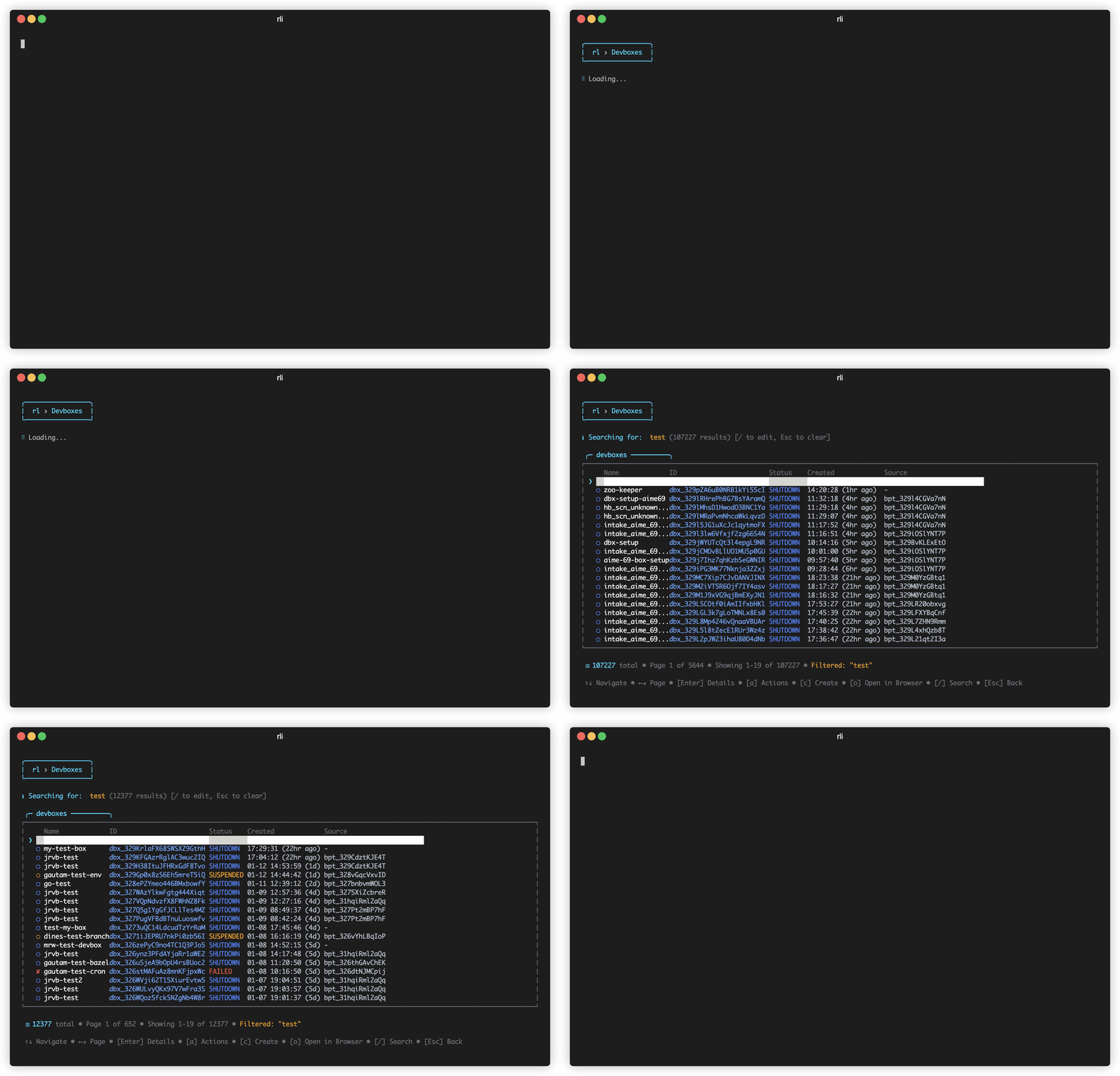
The Runloop CLI includes an interactive mode that makes it easy to search and filter through your devboxes:
 ```bash theme={null}
rli
```
This opens the interactive TUI (Terminal User Interface).
Select **Devboxes** from the main menu to view your list of devboxes.
Press `/` to open the search filter, then type to filter devboxes by name or ID. This is useful when you have many devboxes and need to quickly find a specific one.
Use arrow keys to navigate to the desired devbox and press `Enter` to view details or connect via SSH.
## Using VSCode with SSH
You can use SSH access to connect VSCode to the remote Devbox.
Install the [Visual Studio Code Remote - SSH extension](https://code.visualstudio.com/docs/remote/ssh).
```bash theme={null}
rli devbox create
```
```bash theme={null}
rli devbox ssh dbx_2xMEa8BVcYOOGtXGqWNVj --config-only
```
```bash theme={null}
rli devbox ssh dbx_2xMEa8BVcYOOGtXGqWNVj --config-only >> ~/.ssh/config
```
```bash theme={null}
ssh dbx_2xMEa8BVcYOOGtXGqWNVj "whoami"
```
This should return `user`.
You now have a ready-to-use SSH connection to the Devbox. Follow the remaining instructions in the [VSCode SSH documentation](https://code.visualstudio.com/docs/remote/ssh#_connect-to-a-remote-host) to connect VSCode to your Devbox.
## Security Notes
* All SSH connections are routed through Runloop's transparent proxy.
* Connections are end-to-end encrypted using SSH public key cryptography.
* SSH keys are generated and managed securely through the Runloop API.
By following these steps, you can securely connect to your Runloop Devbox for debugging, code inspection, and project management tasks.
```bash theme={null}
rli
```
This opens the interactive TUI (Terminal User Interface).
Select **Devboxes** from the main menu to view your list of devboxes.
Press `/` to open the search filter, then type to filter devboxes by name or ID. This is useful when you have many devboxes and need to quickly find a specific one.
Use arrow keys to navigate to the desired devbox and press `Enter` to view details or connect via SSH.
## Using VSCode with SSH
You can use SSH access to connect VSCode to the remote Devbox.
Install the [Visual Studio Code Remote - SSH extension](https://code.visualstudio.com/docs/remote/ssh).
```bash theme={null}
rli devbox create
```
```bash theme={null}
rli devbox ssh dbx_2xMEa8BVcYOOGtXGqWNVj --config-only
```
```bash theme={null}
rli devbox ssh dbx_2xMEa8BVcYOOGtXGqWNVj --config-only >> ~/.ssh/config
```
```bash theme={null}
ssh dbx_2xMEa8BVcYOOGtXGqWNVj "whoami"
```
This should return `user`.
You now have a ready-to-use SSH connection to the Devbox. Follow the remaining instructions in the [VSCode SSH documentation](https://code.visualstudio.com/docs/remote/ssh#_connect-to-a-remote-host) to connect VSCode to your Devbox.
## Security Notes
* All SSH connections are routed through Runloop's transparent proxy.
* Connections are end-to-end encrypted using SSH public key cryptography.
* SSH keys are generated and managed securely through the Runloop API.
By following these steps, you can securely connect to your Runloop Devbox for debugging, code inspection, and project management tasks.