> ## Documentation Index
> Fetch the complete documentation index at: https://docs.runloop.ai/llms.txt
> Use this file to discover all available pages before exploring further.
# SSH Access
> Securely connect to your Devbox over SSH with end-to-end encryption
Start with the [Runloop Quickstart](/docs/tutorials/quickstart) to use the examples below.
## Overview
Every Devbox has built-in SSH access. You can open interactive shell sessions, transfer files with `scp` and `rsync`, and connect remote development tools like VSCode -- all secured with **end-to-end encryption** and **elliptic curve key authentication**.
## Quick Start
```bash theme={null}
rli devbox ssh
```
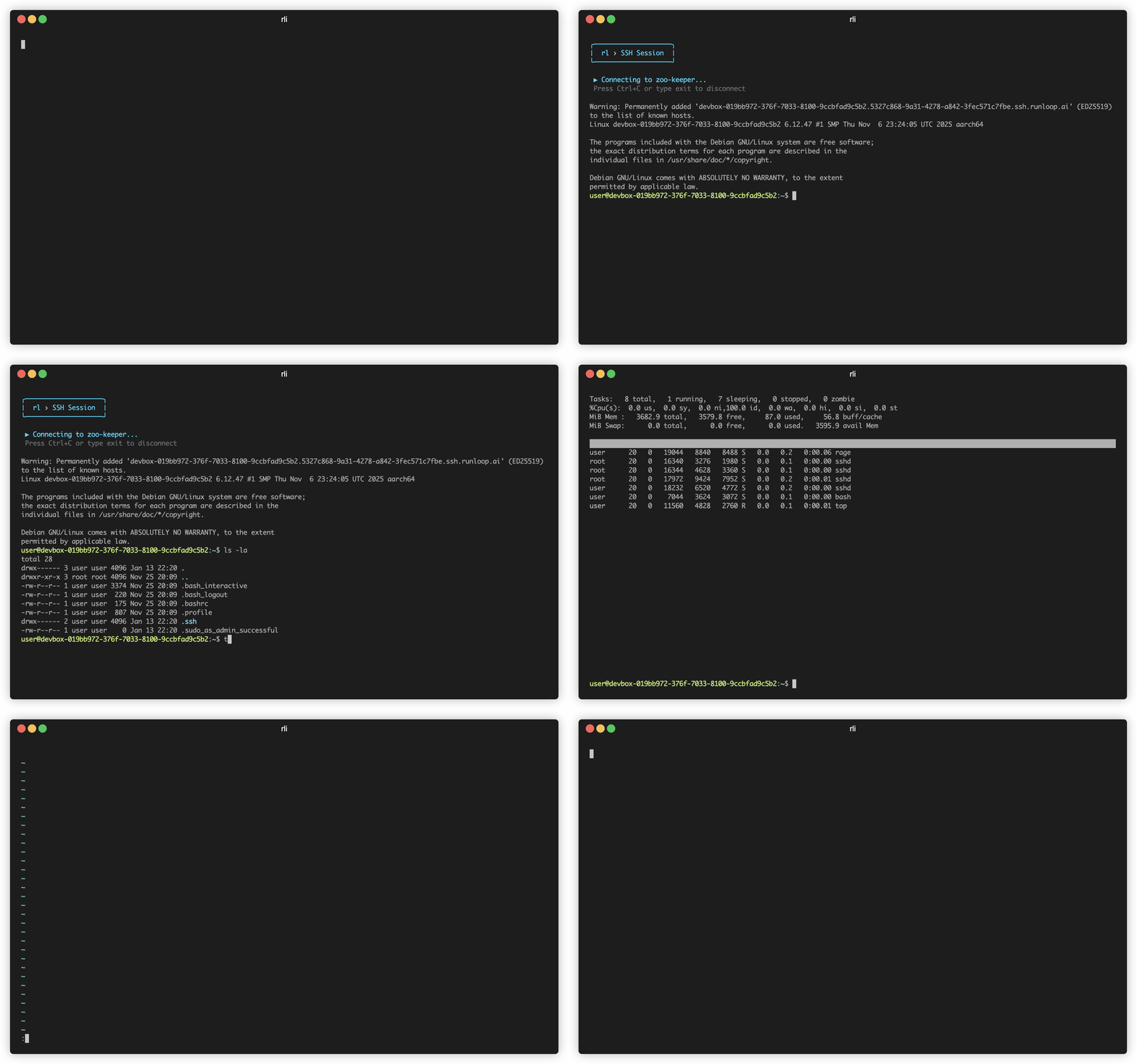
The CLI handles everything -- fetching credentials, writing a temporary key file, and connecting you to a shell.
 ## What Happens When You Connect
When you run `rli devbox ssh`, the CLI:
1. Fetches a **unique ECDSA private key** for that Devbox from the Runloop API (authenticated with your `RUNLOOP_API_KEY`)
2. Writes the key to a temporary file on your machine
3. Opens an SSH session using a **TLS proxy command** that tunnels your connection securely to the Devbox
The CLI uses a TLS-based proxy command under the hood, so SSH traffic is wrapped in TLS. This means it works in most network environments, including those that restrict non-standard outbound ports.
## Security
Runloop SSH uses **ECDSA with the NIST P-256 curve** for key authentication -- the same standard used across the industry for high-security applications.
Your SSH session is encrypted between your machine and the Devbox, wrapped in a TLS tunnel for defense in depth.
Password authentication is disabled. Only the ECDSA key pair issued for your Devbox can authenticate.
Each Devbox gets its own unique key pair at creation time. Keys are not shared across Devboxes.
SSH keys survive the full Devbox lifecycle. Suspend, resume, and reconnect without re-provisioning.
## Session Timeout
SSH sessions will disconnect after **15 minutes of inactivity**. To keep long-running sessions alive, enable keepalive in your SSH config:
```
Host *.ssh.runloop.ai
ServerAliveInterval 60
```
Or pass it inline:
```bash theme={null}
ssh -o ServerAliveInterval=60 ...
```
## Integrating with Your Tools
### SSH Config for VSCode, JetBrains, etc.
Use `--config-only` to generate an SSH config entry instead of connecting directly. This lets any SSH-based tool connect to your Devbox.
```bash theme={null}
rli devbox ssh --config-only >> ~/.ssh/config
```
Once saved, you can connect with standard SSH:
```bash theme={null}
ssh
```
Or use the host entry in VSCode Remote SSH, JetBrains Gateway, or any other tool that reads `~/.ssh/config`.
For a full VSCode walkthrough, see [Debugging Agents with SSH](/docs/devboxes/configuration/troubleshooting/debugging-agent-output-with-ssh#using-vscode-with-ssh).
### File Transfer
Copy files to or from a Devbox. Use the devbox ID (`dbx_*`) as a hostname.
```bash theme={null}
rli devbox scp dbx_abc123:/remote/file.txt ./local-file.txt
rli devbox scp ./local-file.txt dbx_abc123:/remote/path/
```
Sync directories efficiently with delta transfer. Use the devbox ID (`dbx_*`) as a hostname.
```bash theme={null}
rli devbox rsync dbx_abc123:/remote/dir/ ./local-dir/
rli devbox rsync ./local-dir/ dbx_abc123:/remote/dir/
```
## Programmatic Access
If you're building automation or integrating SSH into your own tooling, fetch the credentials directly from the API:
```python Python theme={null}
from runloop_api_client import RunloopSDK
client = RunloopSDK()
ssh_key = client.api.devboxes.create_ssh_key("dbx_1234567890")
print(ssh_key.url) # SSH hostname
print(ssh_key.ssh_private_key) # PEM private key
print(ssh_key.ssh_user) # Linux username
```
```typescript TypeScript theme={null}
import { RunloopSDK } from '@runloop/api-client';
const client = new RunloopSDK();
const sshKey = await client.api.devboxes.createSshKey('dbx_1234567890');
console.log(sshKey.url); // SSH hostname
console.log(sshKey.ssh_private_key); // PEM private key
console.log(sshKey.ssh_user); // Linux username
```
The `create_ssh_key` endpoint returns the existing key pair for the Devbox -- it does not generate new keys on each call.
## Related
Full CLI command documentation including SSH, SCP, and rsync parameters.
Step-by-step guide for connecting to and debugging a Devbox over SSH.
Understand Devbox states and how SSH keys persist through suspend/resume.
Expose Devbox ports to the internet for web previews and services.
## What Happens When You Connect
When you run `rli devbox ssh`, the CLI:
1. Fetches a **unique ECDSA private key** for that Devbox from the Runloop API (authenticated with your `RUNLOOP_API_KEY`)
2. Writes the key to a temporary file on your machine
3. Opens an SSH session using a **TLS proxy command** that tunnels your connection securely to the Devbox
The CLI uses a TLS-based proxy command under the hood, so SSH traffic is wrapped in TLS. This means it works in most network environments, including those that restrict non-standard outbound ports.
## Security
Runloop SSH uses **ECDSA with the NIST P-256 curve** for key authentication -- the same standard used across the industry for high-security applications.
Your SSH session is encrypted between your machine and the Devbox, wrapped in a TLS tunnel for defense in depth.
Password authentication is disabled. Only the ECDSA key pair issued for your Devbox can authenticate.
Each Devbox gets its own unique key pair at creation time. Keys are not shared across Devboxes.
SSH keys survive the full Devbox lifecycle. Suspend, resume, and reconnect without re-provisioning.
## Session Timeout
SSH sessions will disconnect after **15 minutes of inactivity**. To keep long-running sessions alive, enable keepalive in your SSH config:
```
Host *.ssh.runloop.ai
ServerAliveInterval 60
```
Or pass it inline:
```bash theme={null}
ssh -o ServerAliveInterval=60 ...
```
## Integrating with Your Tools
### SSH Config for VSCode, JetBrains, etc.
Use `--config-only` to generate an SSH config entry instead of connecting directly. This lets any SSH-based tool connect to your Devbox.
```bash theme={null}
rli devbox ssh --config-only >> ~/.ssh/config
```
Once saved, you can connect with standard SSH:
```bash theme={null}
ssh
```
Or use the host entry in VSCode Remote SSH, JetBrains Gateway, or any other tool that reads `~/.ssh/config`.
For a full VSCode walkthrough, see [Debugging Agents with SSH](/docs/devboxes/configuration/troubleshooting/debugging-agent-output-with-ssh#using-vscode-with-ssh).
### File Transfer
Copy files to or from a Devbox. Use the devbox ID (`dbx_*`) as a hostname.
```bash theme={null}
rli devbox scp dbx_abc123:/remote/file.txt ./local-file.txt
rli devbox scp ./local-file.txt dbx_abc123:/remote/path/
```
Sync directories efficiently with delta transfer. Use the devbox ID (`dbx_*`) as a hostname.
```bash theme={null}
rli devbox rsync dbx_abc123:/remote/dir/ ./local-dir/
rli devbox rsync ./local-dir/ dbx_abc123:/remote/dir/
```
## Programmatic Access
If you're building automation or integrating SSH into your own tooling, fetch the credentials directly from the API:
```python Python theme={null}
from runloop_api_client import RunloopSDK
client = RunloopSDK()
ssh_key = client.api.devboxes.create_ssh_key("dbx_1234567890")
print(ssh_key.url) # SSH hostname
print(ssh_key.ssh_private_key) # PEM private key
print(ssh_key.ssh_user) # Linux username
```
```typescript TypeScript theme={null}
import { RunloopSDK } from '@runloop/api-client';
const client = new RunloopSDK();
const sshKey = await client.api.devboxes.createSshKey('dbx_1234567890');
console.log(sshKey.url); // SSH hostname
console.log(sshKey.ssh_private_key); // PEM private key
console.log(sshKey.ssh_user); // Linux username
```
The `create_ssh_key` endpoint returns the existing key pair for the Devbox -- it does not generate new keys on each call.
## Related
Full CLI command documentation including SSH, SCP, and rsync parameters.
Step-by-step guide for connecting to and debugging a Devbox over SSH.
Understand Devbox states and how SSH keys persist through suspend/resume.
Expose Devbox ports to the internet for web previews and services.