
Overview
When working with AI-generated code, you may need to debug the state of the project after the AI has run various commands. SSH allows you to connect your computer directly to a Devbox, enabling you to debug, run remote commands, and view or modify the remote filesystem. Runloop uses a transparent proxy to facilitate routing for all SSH access. Your SSH connection is end-to-end encrypted using standard SSH public key cryptography. The Runloop API provides a mechanism for retrieving SSH keys using a Runloop API key.Setup
We recommend using the Runloop CLI (rli) to interact with Devboxes. Install it via npm:
For full CLI documentation including interactive mode and all available commands, see the Runloop CLI documentation.
Create and SSH into a Devbox
1
Export your API key
2
Create an empty Devbox
3
SSH into the Devbox
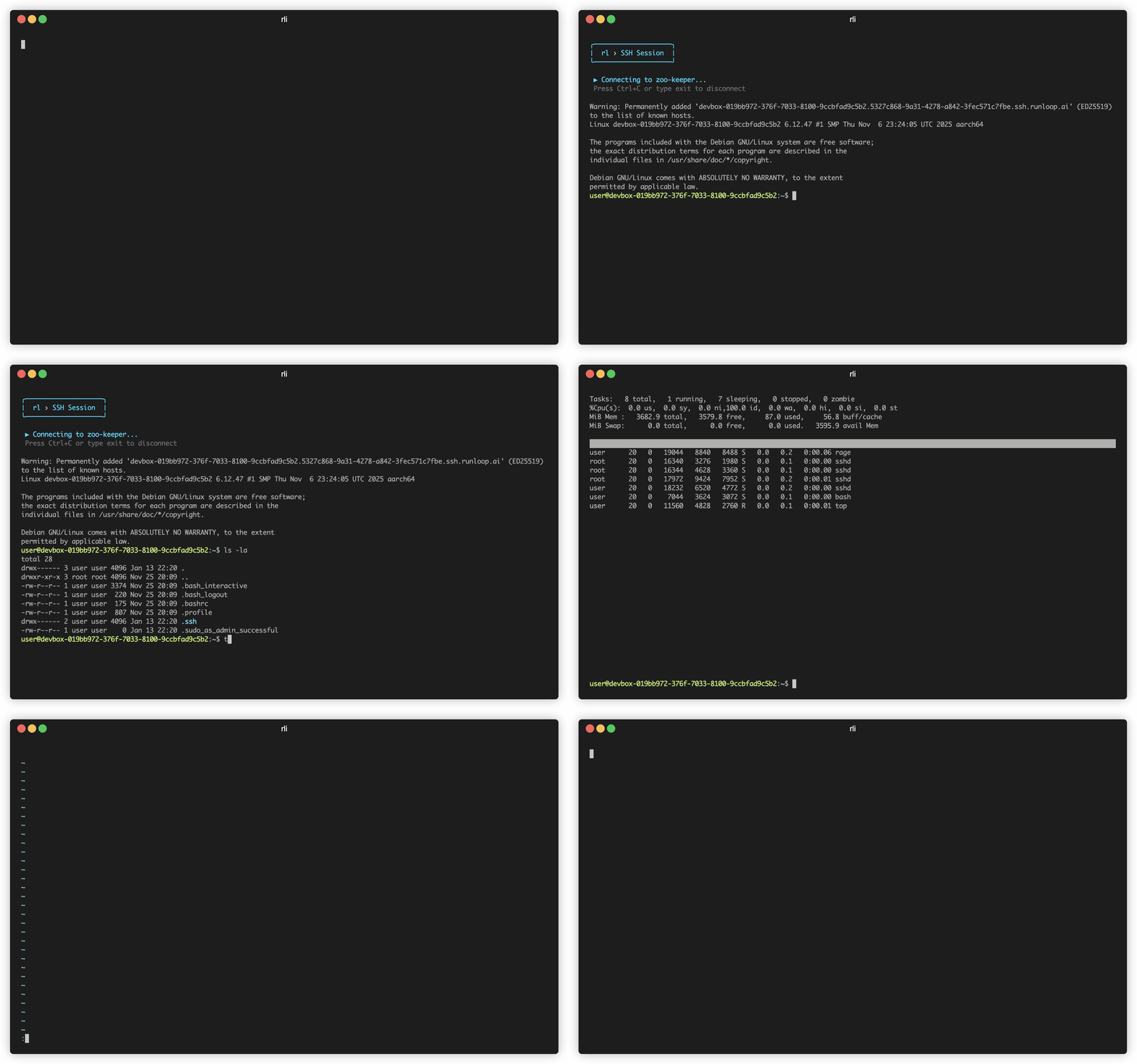
SSH into a running Devbox using the returned ID:The CLI will wait for the devbox to be ready and then connect you to a shell:
4
Exit the SSH session
Type
exit to leave the SSH session.5
Shut down the Devbox
When you’re done, shut down the Devbox:
Finding Devboxes with Interactive Search
The Runloop CLI includes an interactive mode that makes it easy to search and filter through your devboxes: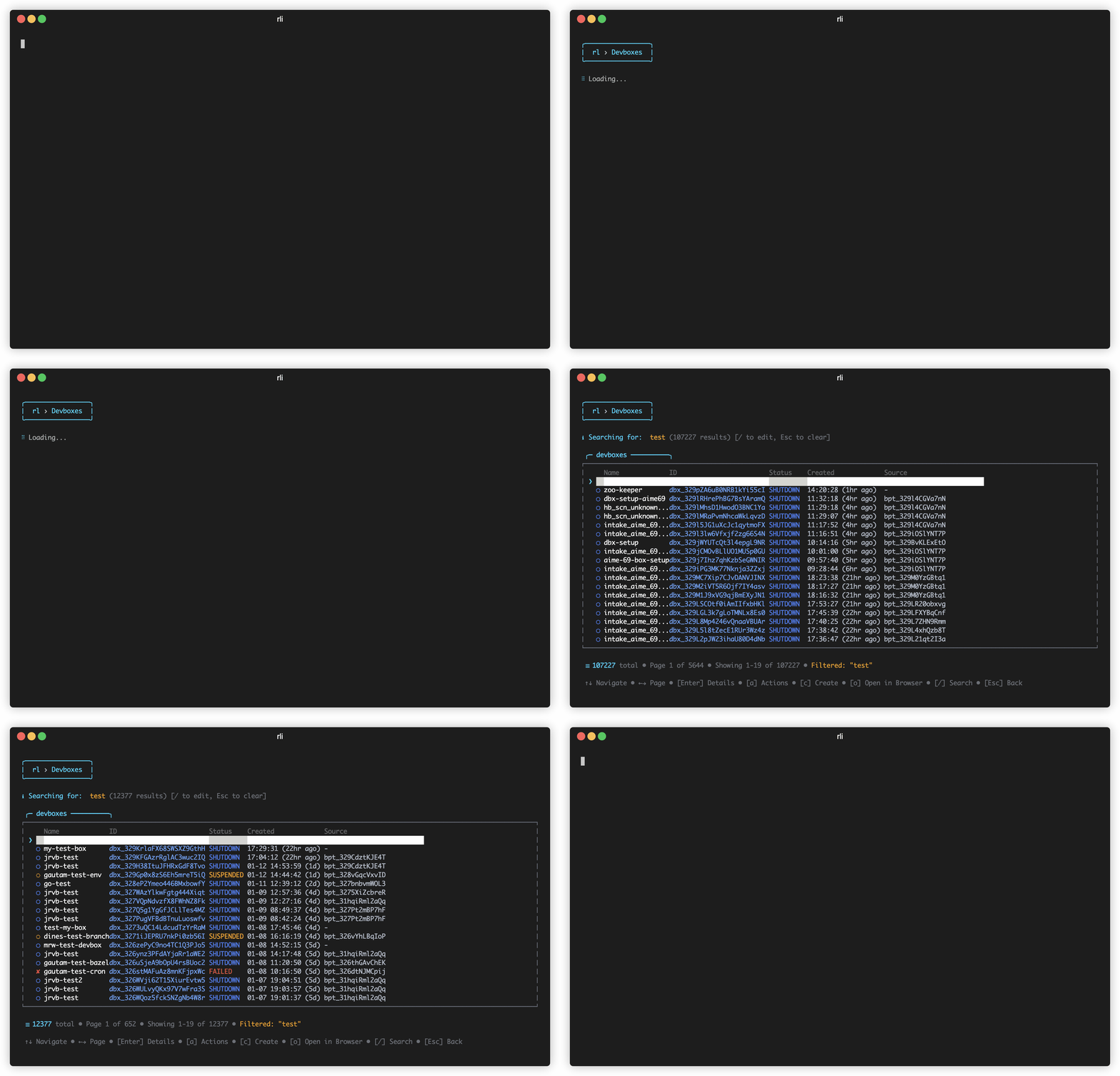
1
Launch interactive mode
2
Navigate to Devboxes
Select Devboxes from the main menu to view your list of devboxes.
3
Search for a devbox
Press
/ to open the search filter, then type to filter devboxes by name or ID. This is useful when you have many devboxes and need to quickly find a specific one.4
Select and connect
Use arrow keys to navigate to the desired devbox and press
Enter to view details or connect via SSH.Using VSCode with SSH
You can use SSH access to connect VSCode to the remote Devbox.1
Install VSCode SSH extension
Install the Visual Studio Code Remote - SSH extension.
2
Create a Devbox
3
Generate SSH config entry
4
Append to SSH config file
5
Verify the configuration
user.6
Connect VSCode to your Devbox
You now have a ready-to-use SSH connection to the Devbox. Follow the remaining instructions in the VSCode SSH documentation to connect VSCode to your Devbox.
Security Notes
- All SSH connections are routed through Runloop’s transparent proxy.
- Connections are end-to-end encrypted using SSH public key cryptography.
- SSH keys are generated and managed securely through the Runloop API.