
Overview
Every Devbox has built-in SSH access. You can open interactive shell sessions, transfer files withscp and rsync, and connect remote development tools like VSCode — all secured with end-to-end encryption and elliptic curve key authentication.
Quick Start
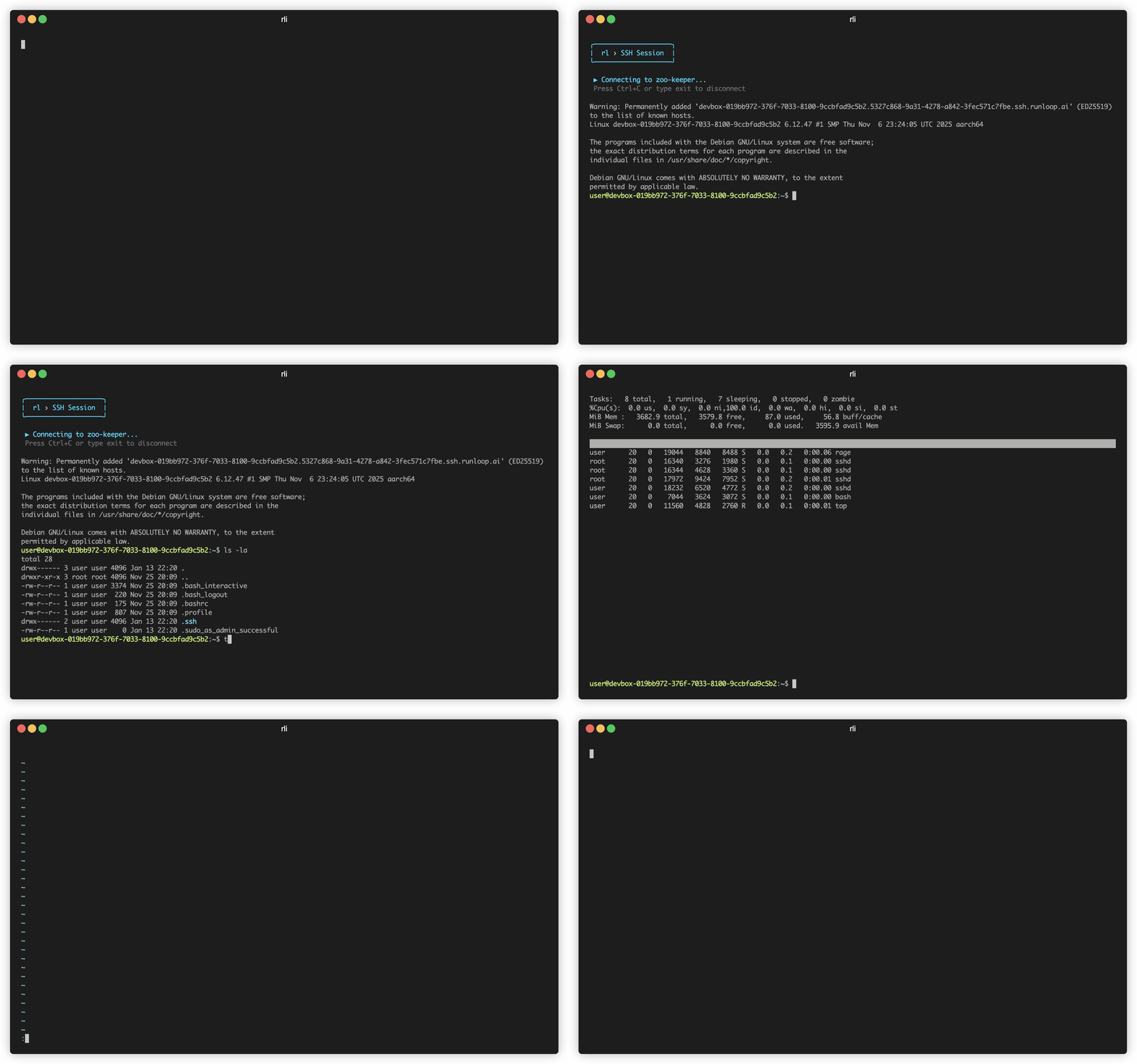
What Happens When You Connect
When you runrli devbox ssh, the CLI:
- Fetches a unique ECDSA private key for that Devbox from the Runloop API (authenticated with your
RUNLOOP_API_KEY) - Writes the key to a temporary file on your machine
- Opens an SSH session using a TLS proxy command that tunnels your connection securely to the Devbox
The CLI uses a TLS-based proxy command under the hood, so SSH traffic is wrapped in TLS. This means it works in most network environments, including those that restrict non-standard outbound ports.
Security
Runloop SSH uses ECDSA with the NIST P-256 curve for key authentication — the same standard used across the industry for high-security applications.End-to-end encrypted
Your SSH session is encrypted between your machine and the Devbox, wrapped in a TLS tunnel for defense in depth.
Key-only authentication
Password authentication is disabled. Only the ECDSA key pair issued for your Devbox can authenticate.
Per-Devbox keys
Each Devbox gets its own unique key pair at creation time. Keys are not shared across Devboxes.
Keys persist across suspend/resume
SSH keys survive the full Devbox lifecycle. Suspend, resume, and reconnect without re-provisioning.
Session Timeout
SSH sessions will disconnect after 15 minutes of inactivity. To keep long-running sessions alive, enable keepalive in your SSH config:Integrating with Your Tools
SSH Config for VSCode, JetBrains, etc.
Use--config-only to generate an SSH config entry instead of connecting directly. This lets any SSH-based tool connect to your Devbox.
1
Generate and save the config
2
Connect from any tool
Once saved, you can connect with standard SSH:Or use the host entry in VSCode Remote SSH, JetBrains Gateway, or any other tool that reads
~/.ssh/config.File Transfer
SCP
Copy files to or from a Devbox. Use the devbox ID (
dbx_*) as a hostname.Rsync
Sync directories efficiently with delta transfer. Use the devbox ID (
dbx_*) as a hostname.Programmatic Access
If you’re building automation or integrating SSH into your own tooling, fetch the credentials directly from the API:The
create_ssh_key endpoint returns the existing key pair for the Devbox — it does not generate new keys on each call.Related
CLI Reference
Full CLI command documentation including SSH, SCP, and rsync parameters.
Debugging with SSH
Step-by-step guide for connecting to and debugging a Devbox over SSH.
Devbox Lifecycle
Understand Devbox states and how SSH keys persist through suspend/resume.
Tunnels
Expose Devbox ports to the internet for web previews and services.